
 ings
ings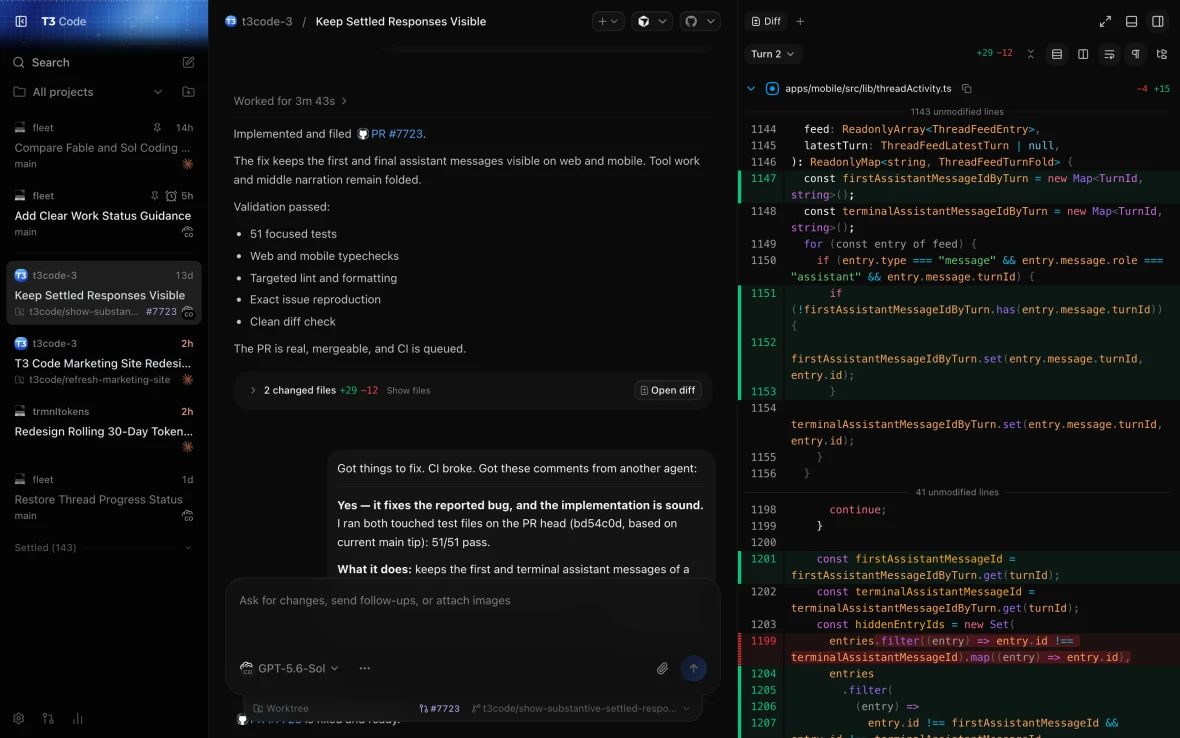
You leave an AI coding agent working through a bug, then step away. When you return, it has made almost no progress. A permission request appeared a few minutes after you left, and the agent has been waiting ever since.
For longer coding tasks, these interruptions make it difficult to leave the desk. The agent can work independently for stretches of time, but you still need a way to respond when it reaches a decision.
T3 Code is an open-source control console for AI coding agents. It connects to tools running on your computer and makes them accessible through desktop, web, and mobile apps. You can check progress, send instructions, and handle approvals from your phone while the development environment stays on the host machine. Supported tools include Claude Code, Codex, Cursor, and OpenCode.
This guide follows one workflow: start a coding task on your computer, connect your phone, and respond when the agent needs you.
What T3 Code adds to your AI coding setup
T3 Code provides the interface for managing projects, conversations, and agent actions. The underlying coding agent still supplies the model access and tools that do the work. Your project files and execution environment remain on the computer running the task.
The project is available on GitHub under the MIT license, so you can inspect, modify, and fork the code. T3 Code itself is free; your existing provider subscription or API charges still apply. An open-source interface does not make the connected models open source or their usage free.
For this setup, you need a development computer with your project, a configured coding agent, and a phone with network access. Start with one agent you already use.
1. Install T3 Code and connect your coding agent
Install the desktop app from the official T3 Code website. On macOS, Homebrew users can also run:
brew install --cask t3-codeOpen Settings → Providers, select the environment, and enable the agent you want to use. Installation and authentication belong on that machine, even if you will eventually control it from your phone.
For example, if you use Claude Code, install it on the host and authenticate with:
claude auth loginBefore configuring remote access, open your project and run a small local task. Ask the agent to explain a function or inspect a failing test. Confirm that it can access the files and respond correctly. This separates provider setup problems from remote connection problems. See the installation guide for other providers and operating systems.
2. Set permissions before starting a remote task
Remote access determines where you can respond. Permission settings determine when you need to respond.
T3 Code exposes four modes in the message composer:
Mode | General behavior |
|---|---|
Supervised | Requests approval for commands and file changes. Some read-only actions may proceed automatically. |
Auto-accept edits | Approves file edits automatically; other actions may still require approval. |
Auto | Uses the provider's automatic review to approve routine actions and escalate others. |
Full access | Allows commands and edits without the usual approval prompts, subject to provider-specific restrictions. |
The documented initial default is Full access. For a first remote session, start with Supervised so you can see what the agent requests before granting more autonomy. Change the default for new threads under Settings → Threads → New threads → Permissions.
Provider behavior varies. Auto depends on the agent's review capabilities, and even Full access can retain provider-specific approval requirements. These settings also do not prevent an agent from asking questions about the task. The permission documentation explains those differences.
3. Connect your phone with T3 Connect
On the host computer, open Settings → Connections, sign in, and enable T3 Connect for the environment.
Install the mobile app using the iOS or Android links on the official website. Sign in to the same T3 Connect account and select your computer.
For a command-line host with the T3 CLI installed, begin with:
t3 connectFollow the sign-in instructions and configure the offered background service. If you decline that service, start the server with:
t3 serveSigning in alone does not make the computer reachable. The server must be running. T3 Connect handles remote connectivity without requiring router port forwarding; the host still needs to remain awake and online.
Before leaving, turn off Wi-Fi on your phone and connect over mobile data. This checks the connection you will actually use outside your local network. For direct pairing on a LAN or private network, follow the alternative steps in the remote access guide.
4. Run and review your first remote coding task
Choose a task with a clear finish line: investigate a failing test, fix a reproducible bug, or add coverage for a specific function. Give the agent a defined scope and tell it what to report.
Investigate the failing login tests. Reproduce the failure, make the smallest necessary fix, and rerun the relevant tests. Do not upgrade dependencies or change the database schema. Report the files changed, test results, and anything you could not verify.
Start the task on your computer, then open it on your phone. Check that progress appears, send a follow-up instruction, and respond to any approval request. This verifies that you can intervene when the agent needs you, beyond simply establishing a connection.
When the task finishes, review the evidence. T3 Code supports change inspection and pull-request workflows, including viewing PR details and changed files on mobile. A short diff may be practical to review on a phone; a change spanning several modules deserves a larger screen. The source control guide covers the available review tools.
Check which files changed, which tests actually ran, and what remains unverified before accepting the work.
Where this workflow helps—and where it stops
T3 Code is useful when occasional approvals or follow-up questions keep you tethered to a long-running coding task. You can handle those interruptions from your phone while the computer continues executing.
It still depends on the host, the coding agent, and your provider account. A sleeping laptop, unavailable network, or exhausted provider quota can stop the workflow. The project also describes itself as early-stage software, so test it on a small, recoverable task before relying on it for a larger job.
The practical division of work is simple: let the computer execute, use the phone for timely decisions, and reserve detailed review for the desk. Once that loop works, you can step away without losing access to the task.
Based on official T3 Code documentation checked on October 28, 2026. Setup labels and provider behavior may change between releases.